
Published Date: October 17, 2023
Validated: Yes
Audience: Everyone
Products and Versions Covered:
-
Jama Connect®
Cloud / CVC
Self-hosted
IMPORTANT: Access to the REST API is limited to users with a Named Creator Jama Connect license, including endpoints in v1, labs, and SCIM. Users without a Named Creator Jama Connect license, including those with a Creator Float License, do not have access.
Summary
Once Single Sign-On (SSO) is enabled, basic Jama credentials can no longer be used for API authentication. Users must generate API credentials and use OAuth to obtain a bearer token for API calls.
Resolution
To authenticate API calls after SSO is enabled, you must generate OAuth credentials in Jama Connect and use them to obtain a bearer token. It is also a requirement that your user, or a group that your user is a part of be given access to Rest API.
Step 1: User or Group Rest API access
- Log in to Jama Connect®
- Navigate to the Admin Page, Rest API tab
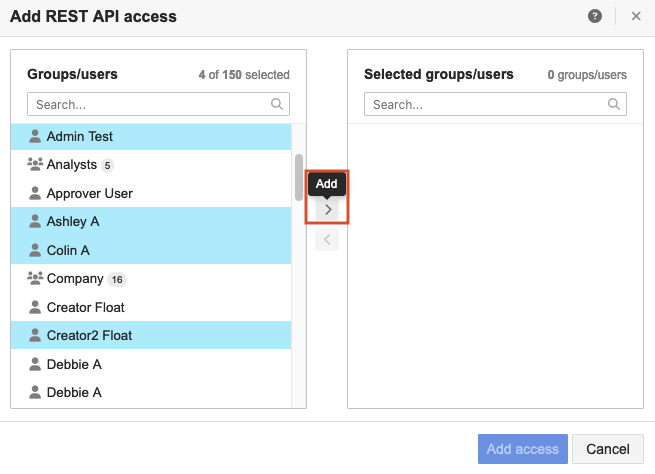
- Add access to the User or User group
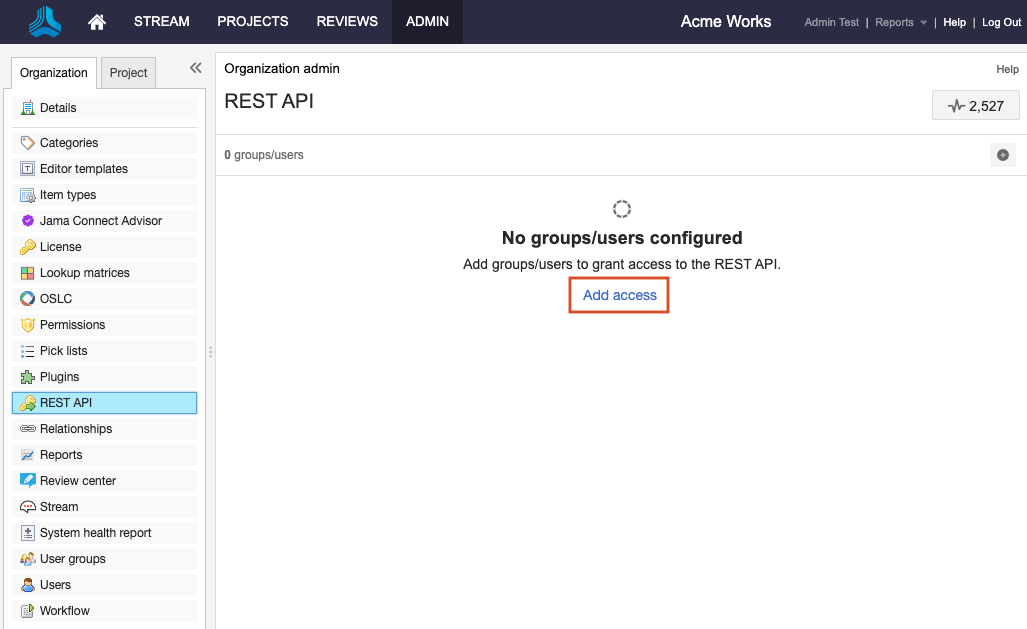
Select the User and/or Groups, click "Add" and "Add access".
Step 2: Generate API Credentials in Jama Connect
- Navigate to your user profile
- Select Set API Credentials
- Enter a name for the credentials
- Select Create API Credentials
IMPORTANT: The Client Secret is only shown once. Store it securely before closing the dialog.
In your profile, select "Set API Credentials"
Enter a name for your new credentials and select "Create API Credentials"
IMPORTANT: Make sure to take note of your Client Secret now as it will not appear again
Step 3: Generate a Bearer Token (cURL)
Use the following command to obtain a bearer token:
curl --request POST https://<CLIENT-ID>:<CLIENT-SECRET>@<BASE-URL>/rest/oauth/token --data grant_type=client_credentialsExample:
curl --request POST https://rbfogo319n6ibtb:c4gj8xhzx5fyej16bzv9l1brh@example.jamacloud.com/rest/oauth/token --data grant_type=client_credentialsResponse:
{
  "access_token": "eyJhbGciOiJSUzI1NiIs...",
  "token_type": "bearer",
  "expires_in": 3599,
  "scope": "token_information",
  "application_data": {
    "JAMA_CORE": "example"
  },
  "tenant": "jamatenant00000",
  "jti": "5dcb814c-d31c-438b-95b7-c7f30bdfcbd2"
}
Step 4: Test the Bearer Token
Use the access token in an API request:
curl --request GET https://<BASE-URL>/rest/v1/users/current \
--header "Authorization: Bearer <BEARER-TOKEN>"
Example:
curl --request GET https://example.jamacloud.com/rest/v1/users/current \
--header "Authorization: Bearer eyJhbGciOiJSUzI1NiIs..."
Step 5: Configure in Postman
- Select OAuth 2.0 under the Authorization tab
2. Fill in the following fields:
| Field | Value |
|---|---|
| Token Name | <ANY-NAME> |
| Grant Type | Client Credentials |
| Access Token URL | https://<BASE-URL>/rest/oauth/token |
| Client ID | <CLIENT-ID> |
| Client Secret | <CLIENT-SECRET> |
| Scope | <empty> |
| Client Authentication | Send as Basic Auth header |
3. Select Get New Access Token
4. Click Use Token
5. Make your API request using the token
Additional Resources
- Manage REST API access for groups and users
- Jama REST API Authentication
- Success Programs
- Success Catalog
- Datasheets
- Request a Solution Offering or Training from the Success Catalog
Feedback:
We welcome your input! Please sign in to leave any comments, suggestions, or ideas for improvement below.
Comments
0 comments
Please sign in to leave a comment.